Our Short List of 3
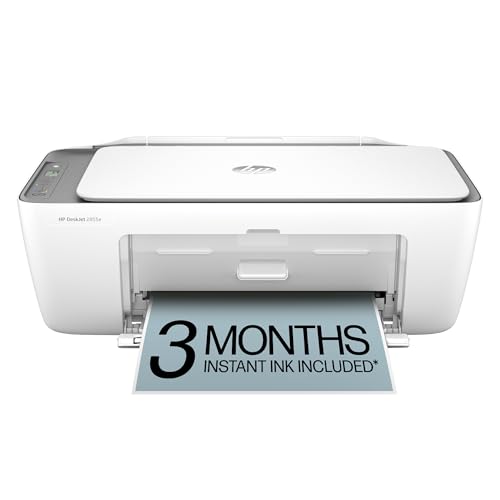
- Best for: students and small desks that need print, scan and copy in the smallest footprint here.
- Functions: print, scan, copy (color inkjet, flatbed scanner)
- Print speed: up to 7.5 ppm black, 5.5 ppm color
- Paper: 60-sheet input tray
- Connectivity: single-band Wi-Fi (2.4 GHz only), USB, Bluetooth

- Best for: families printing color school projects weekly who want two-sided output and a proper touchscreen.
- Functions: print, scan, copy (inkjet)
- Print speed: up to 15 ppm black, 10 ppm color
- Two-sided printing: automatic
- Display: 2.7-inch LCD touchscreen

- Best for: heavy text printing from a Chromebook, where speed, tray size and toner economy matter most.
- Functions: print only, monochrome laser
- Print speed: up to 36 ppm
- Two-sided printing: automatic
- Paper: 250-sheet tray plus single-sheet manual feed slot
All 3 Picks at a Glance
| Product | Specs | Action |
|---|---|---|
| HP DeskJet 2855e All-in-One Printer |
| Check price on Amazon |
| Canon PIXMA TS7720 Wireless All-in-One Printer |
| Check price on Amazon |
| Brother HL-L2460DW Monochrome Laser Printer |
| Check price on Amazon |
Key takeaways
- Compare five Chromebook-ready printers on Chrome OS support, Wi-Fi setup, print speed, ink or toner type and scanning, for school, home and office use.
Printing from a Chromebook is an all-or-nothing decision made before the box is opened. Chrome OS installs no drivers, so a printer either speaks the system’s built-in network printing language or it never appears in the print dialog at all. A model that works beautifully with a Windows laptop can be invisible to a Chromebook on the same desk. The real decision is therefore not speed or color first, but confirmed Chrome OS support, and only then the hardware around it.
This roundup is for parents printing homework from a family Chromebook, students in dorm rooms, and home offices where the Chromebook is the main computer. Each printer below was picked from its Amazon listing: stated Chromebook or Chrome OS support, Wi-Fi band, print speed, paper handling and the ink or toner system in the box. Where a listing’s fields disagreed, the product information figure is the one used.
Quick Picks
As an Amazon Associate we earn from qualifying purchases
| Product | Best for | Key spec from title |
|---|---|---|
| Canon PIXMA TS3720 | Schoolwork and light family printing | Dual-band Wi-Fi, works with Chromebook |
| HP DeskJet 2855e | Small desks and occasional color pages | 7.5 ppm black, 60-sheet tray |
| Canon PIXMA TS7720 | Faster color with two-sided printing | 15 ppm black, auto duplex |
| HP DeskJet 4255e | Multi-page scans and copies at home | 35-sheet auto document feeder |
| Brother HL-L2460DW | Heavy black-and-white document volume | 36 ppm, 250-sheet tray |
How to Choose
Chrome OS support, in the listing’s own words
Chromebooks print through the standards built into Chrome OS, mainly IPP-based network printing, which Mopria and AirPrint also ride on. That is why the safest listings say the quiet part out loud: Canon prints works with Chromebook in the TS3720’s feature list, and HP lists Chrome OS among the mobile printing options for its DeskJet models. If a listing names only Windows and macOS and shows no network printing standard, treat Chromebook support as unconfirmed, however modern the printer looks. Printing and scanning are also separate questions, and a model can do one without the other.
Wi-Fi band and the five-minute setup test
Every printer here connects over Wi-Fi, and the band matters more than the logo on the box. Dual-band models such as the two Canons and the Brother can join either a 2.4 GHz or a 5 GHz network, which helps in homes where the router splits the two. The HP DeskJets are 2.4 GHz only, still fine for most home routers but worth knowing before you unbox. On the Chromebook itself, setup is adding the printer under Settings, then Printing, once both devices share a network. No software disc, no driver hunt, and no admin password gymnastics.
Ink and toner: what goes in the box, and after
The five printers split into three supply systems, and the split decides your second year with the machine. The Canons and HPs use two cartridges each, one black and one tri-color, which keeps swaps simple but means one empty color ends the whole color cartridge. The Brother laser uses a toner cartridge plus a separate drum, a pairing built for long runs of text. Every model ships with setup or starter supplies sized for first weeks, not first semesters, so check the cartridge family on the listing and confirm replacements are easy to find before the first big print job lands.
Speed, trays and the scanner you will actually use
Pages per minute look similar until the workload changes. The Brother prints up to 36 pages a minute and holds 250 sheets, so a forty-page report is a short wait with no tray refill. The inkjets here print between about 5.5 and 15 pages a minute and hold 60 to 100 sheets, which suits homework and letters rather than manuscripts. Then look at the scanner: a flatbed lid handles books and single sheets, while the 4255e’s 35-sheet feeder walks through a stack of forms unattended. Automatic two-sided printing, on the TS7720 and the Brother, halves paper handling on long documents.
The 5 Best Options
Canon PIXMA TS3720 Wireless All-in-One Printer
The TS3720 is the straightforward answer for a Chromebook household. Canon states the compatibility in the listing itself rather than leaving it to a support page, and the dual-band radio means it can join whichever network the family router broadcasts. Print speed is modest, which matters little for homework, letters and the odd photo, and the rear tray takes envelopes and photo paper as happily as plain sheets. The 1.5-inch screen covers ink status and basic controls without reaching for a phone, and the whole unit is small enough for a shelf above the desk.
Specs
- Functions: print, scan, copy (inkjet)
- Connectivity: dual-band Wi-Fi (2.4 GHz and 5 GHz), USB
- Print speed: about 7.7 ipm black, 4.0 ipm color
- Paper: 60-sheet rear tray
- Display: 1.5-inch segment LCD
- Ink: Canon PG-275 black and CL-276 color cartridges
- Borderless photos up to 5 x 7 inches
- Chromebook: listing states it works with Chromebook; also Canon PRINT app, AirPrint, Mopria
Best for: families who want the Chromebook question answered in the listing itself, with light school and home printing.
Watch out for: no automatic two-sided printing is listed, so long documents mean flipping pages by hand, and the 60-sheet rear tray needs regular refills in a busy week.
ASIN: B0D1DV6FV5
HP DeskJet 2855e All-in-One Printer
- Best for: students and small desks that need print, scan and copy in the smallest footprint here.
- Functions: print, scan, copy (color inkjet, flatbed scanner)
- Print speed: up to 7.5 ppm black, 5.5 ppm color
- Paper: 60-sheet input tray
- Connectivity: single-band Wi-Fi (2.4 GHz only), USB, Bluetooth
students and small desks that need print, scan and copy in the smallest footprint here.
Wi-Fi is 2.4 GHz only, and there is no document feeder, so multi-page scans go one sheet at a time across the flatbed.
The DeskJet 2855e is HP’s compact route into Chromebook printing, aimed at desks where the printer shares space with the laptop itself. HP’s listing data puts Chrome OS alongside AirPrint and Mopria in its mobile printing support, and the flatbed lid covers the scanning and copying most homes need. Output is unhurried at up to 7.5 pages a minute in black, and the 60-sheet tray matches that pace: this is a machine for permission slips, essays and boarding passes, not for printing a thesis the night before it is due.
Canon PIXMA TS7720 Wireless All-in-One Printer
- Best for: families printing color school projects weekly who want two-sided output and a proper touchscreen.
- Functions: print, scan, copy (inkjet)
- Print speed: up to 15 ppm black, 10 ppm color
- Two-sided printing: automatic
- Display: 2.7-inch LCD touchscreen
families printing color school projects weekly who want two-sided output and a proper touchscreen.
one tri-color cartridge covers all colors, so a single empty color ends the cartridge, and heavy photo printing will cycle cartridges quickly.
Think of the TS7720 as the TS3720’s quicker older sibling. It keeps Canon’s plainly stated Chromebook support and dual-band Wi-Fi, then adds the two features heavy home users feel first: automatic two-sided printing and speeds up to 15 pages a minute in black. The 2.7-inch touchscreen makes copying and ink checks a stand-at-the-printer job instead of an app job, and the front tray holds 100 sheets, so it asks for paper less often. For a family that prints school projects in color every week, this is the balanced pick.
HP DeskJet 4255e All-in-One Printer
The 4255e earns its place with one piece of hardware the others lack: a 35-sheet automatic document feeder. Multi-page forms, signed packets and a term’s worth of handouts go through the scanner in one stack instead of page by page, which is the chore Chromebook households underestimate until they face it. HP lists Chrome OS among its mobile printing options, and color output reaches up to 4800 x 1200 optimized dpi on photo paper for the occasional project board. Print speed stays in home territory, so the feeder, not pace, is the reason to choose it.
Specs
- Functions: print, scan, copy (color inkjet)
- Document feeder: 35-sheet automatic document feeder
- Paper: 60-sheet input tray
- Connectivity: single-band Wi-Fi 802.11b/g/n (2.4 GHz only), USB 2.0
- Max color resolution: up to 4800 x 1200 optimized dpi
- Ink: HP 67 cartridges; setup cartridges included
- Mobile printing: HP app, Apple AirPrint, Chrome OS, Mopria-certified
- Two-sided printing: manual
Best for: households that scan or copy multi-page forms and school packets on a regular basis.
Watch out for: setting up HP+ requires an HP account, an internet connection and original HP ink from then on, per HP’s listing terms; Wi-Fi is also 2.4 GHz only.
ASIN: B0CT2QHQVF
Brother HL-L2460DW Monochrome Laser Printer
- Best for: heavy text printing from a Chromebook, where speed, tray size and toner economy matter most.
- Functions: print only, monochrome laser
- Print speed: up to 36 ppm
- Two-sided printing: automatic
- Paper: 250-sheet tray plus single-sheet manual feed slot
heavy text printing from a Chromebook, where speed, tray size and toner economy matter most.
black-and-white only, with no scanner or copier, and the starter toner in the box is a small fill, so a full cartridge belongs in the first supply order.
The Brother is the odd one out here, deliberately: a monochrome laser that prints only, in black only, and does that one job faster than anything else in this group. Up to 36 pages a minute, automatic two-sided output and a 250-sheet tray suit anyone whose Chromebook life is essays, contracts and reading packets. Brother lists Chrome OS in this model’s system requirements, and the printer also speaks AirPrint and Mopria over dual-band Wi-Fi or Ethernet. There is no scanner and no color, which is exactly the trade that buys the speed.
Which One Fits Your Situation
Homework and school projects from a family Chromebook
Start with the Canon PIXMA TS3720. Its listing states Chromebook support outright, the dual-band Wi-Fi fits whatever network the house runs, and the rear tray swaps between plain paper, envelopes and photo sheets without fuss. Speed is modest, but school printing arrives in five-page bursts, and the small footprint leaves the desk free for the books the printing is about.
A dorm room or a very small desk
The HP DeskJet 2855e fits where a printer barely fits at all. It covers print, scan and copy from a flatbed lid, connects over the 2.4 GHz network most dorms and apartments broadcast, and its 60-sheet tray matches the short runs students actually print. Expect unhurried pages and plan big jobs for the library, but for essays and forms it is the right size.
Long documents, page after page of text
Choose the Brother HL-L2460DW. Toner, a 250-sheet tray and automatic two-sided printing are built for volume, and up to 36 pages a minute clears a reading packet before the kettle boils. The condition is honesty about your printing: it is black only, with no scanner, so households that also need color or copies should take the TS7720 instead and accept inkjet pace.
Stacks of forms, packets and multi-page scans
The HP DeskJet 4255e is the pick when paper arrives in piles. Its 35-sheet feeder scans or copies a whole packet in one pass, the flatbed still handles books and ID cards, and Chrome OS printing covers the everyday output. Keep expectations set on speed: this machine’s gift is unattended scanning, not fast pages, and its feeder is worth more than raw pace here.
Common Mistakes
- Assuming every Wi-Fi printer works with a Chromebook — check that the listing names Chromebook or Chrome OS support, or a network printing standard such as Mopria, before ordering.
- Judging a printer by the cartridges in the box — setup and starter supplies are small fills, so confirm the replacement cartridge family on the listing instead.
- Buying a print-only laser and discovering later that the household also needs scanning and copying.
- Ignoring the Wi-Fi band — a 2.4 GHz-only printer cannot join a network segment that broadcasts only on 5 GHz.
- Expecting the scanner to work just because printing does — scanning to a Chromebook can depend on the maker’s app or web tools, so check that path too.
Frequently Asked Questions
How does a Chromebook print without installing drivers?
Chrome OS carries its own printing system and finds printers that speak standard network protocols on the local Wi-Fi. You add the printer once under Settings, then Printing, and it appears in the print dialog of the browser and apps. That is why confirmed Chrome OS support on the listing matters more than any bundled software disc.
Can I scan to a Chromebook from these printers?
Printing is the standardized half; scanning varies more by brand. The all-in-one models here can send scans through the maker’s app or a browser-based scan tool on many setups, but the exact path differs between Canon, HP and a given Chrome OS version. If scanning school or work documents is a weekly job, confirm the scan route for your model before buying.
Will these printers also work with phones and Windows laptops?
Yes. Every printer in this group also speaks the common mobile and desktop standards listed on its page, such as AirPrint and Mopria, and each brand keeps its own app for phones. A Chromebook-friendly printer is not a Chromebook-only printer; it simply adds Chrome OS to a list that usually already includes Windows, macOS and phones.
Inkjet or laser for a school Chromebook?
It depends on what gets printed. Text-heavy work in volume favors the Brother laser: toner, fast pages and a big tray. Mixed homework with color diagrams, photos and projects favors an inkjet such as the TS3720 or TS7720. Count your color pages honestly for a month, and let that tally, not habit, make the call.